Proxy Server Chrome: Boost Your Browsing Security
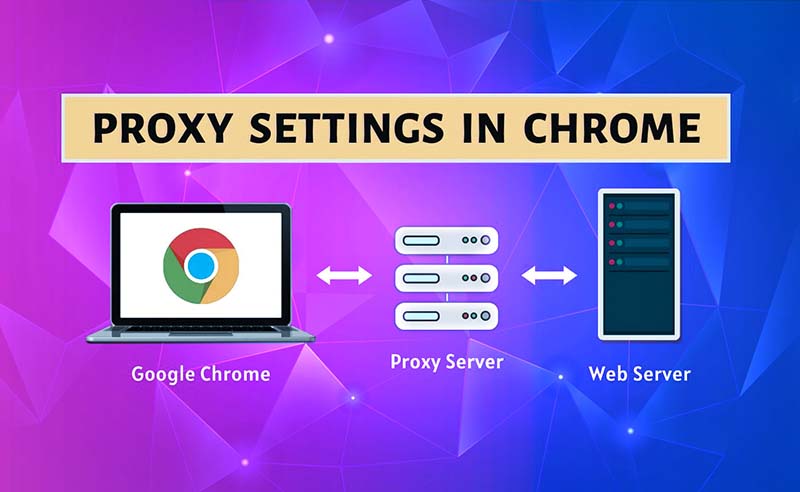
A proxy server serves as a bridge between your browser and the websites you visit, ensuring that your requests first pass through this server. When using a proxy server Chrome, your web requests are routed through the proxy before reaching the desired website. Next, we will learn about the benefits of Chrome proxy server and how to set them up.
Why Use A Proxy Server For Chrome?
A proxy server Chrome can improve your time online in several ways, such as better privacy, reaching blocked websites, and faster internet.
Improved Privacy and Security
A proxy server stands between your computer and the websites you visit. This hides your IP address and where you are, which keeps websites from tracking what you do online. Some proxy servers also encrypt your data so others can't get to it.
Access to Blocked Content
Some websites may not be available where you live or on your network. A proxy server can give you a different IP address from another place, so you can get to the content you want.
Bandwidth Savings and Improved Speeds
Proxy servers can save copies of popular websites and give them to you without having to download the site every time. This saves data and makes websites load faster.
Control Over Internet Usage
Companies can use proxy servers to block certain websites or types of content to control what people do online at work.
How to Use Proxy Server in Chrome on Windows?
Using a proxy server Chrome allows you to route your browser traffic through that server, which can provide increased privacy, bypass geo-restrictions, and more. Here's a step-by-step guide on how to use proxy server in Chrome on Windows:
- Open Google Chrome.
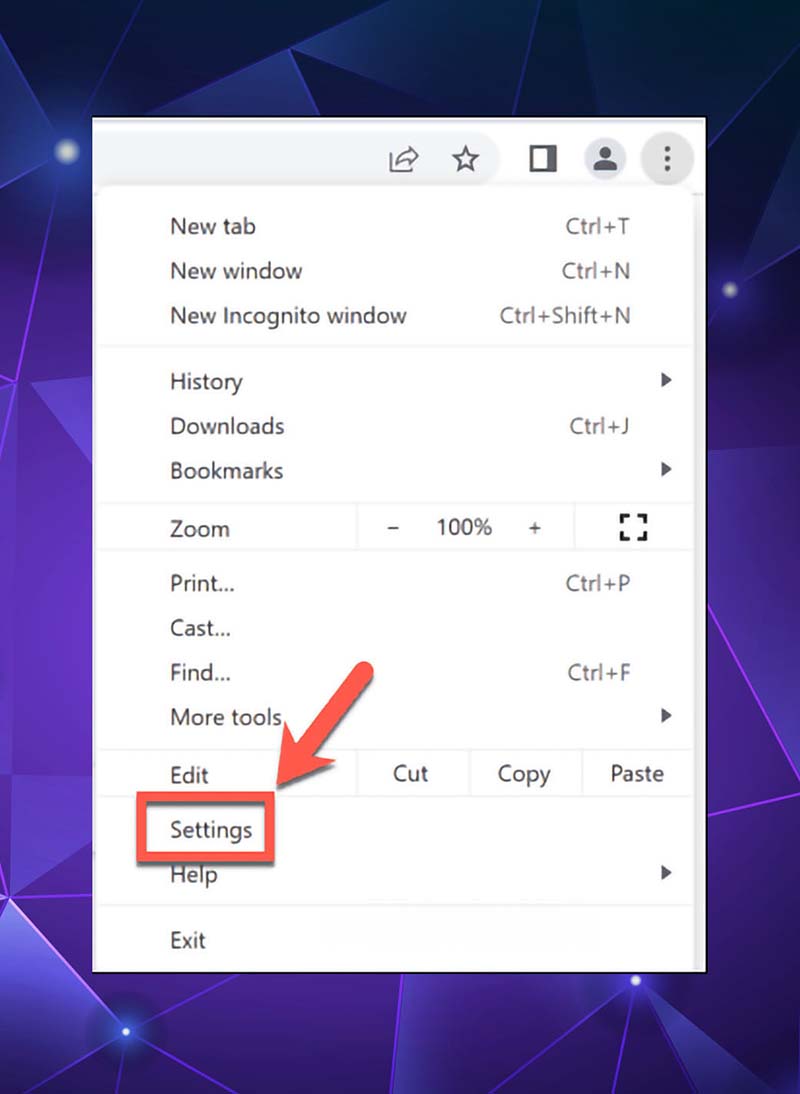
- Click on the three dots in the top right corner to open the menu, then select "Settings".
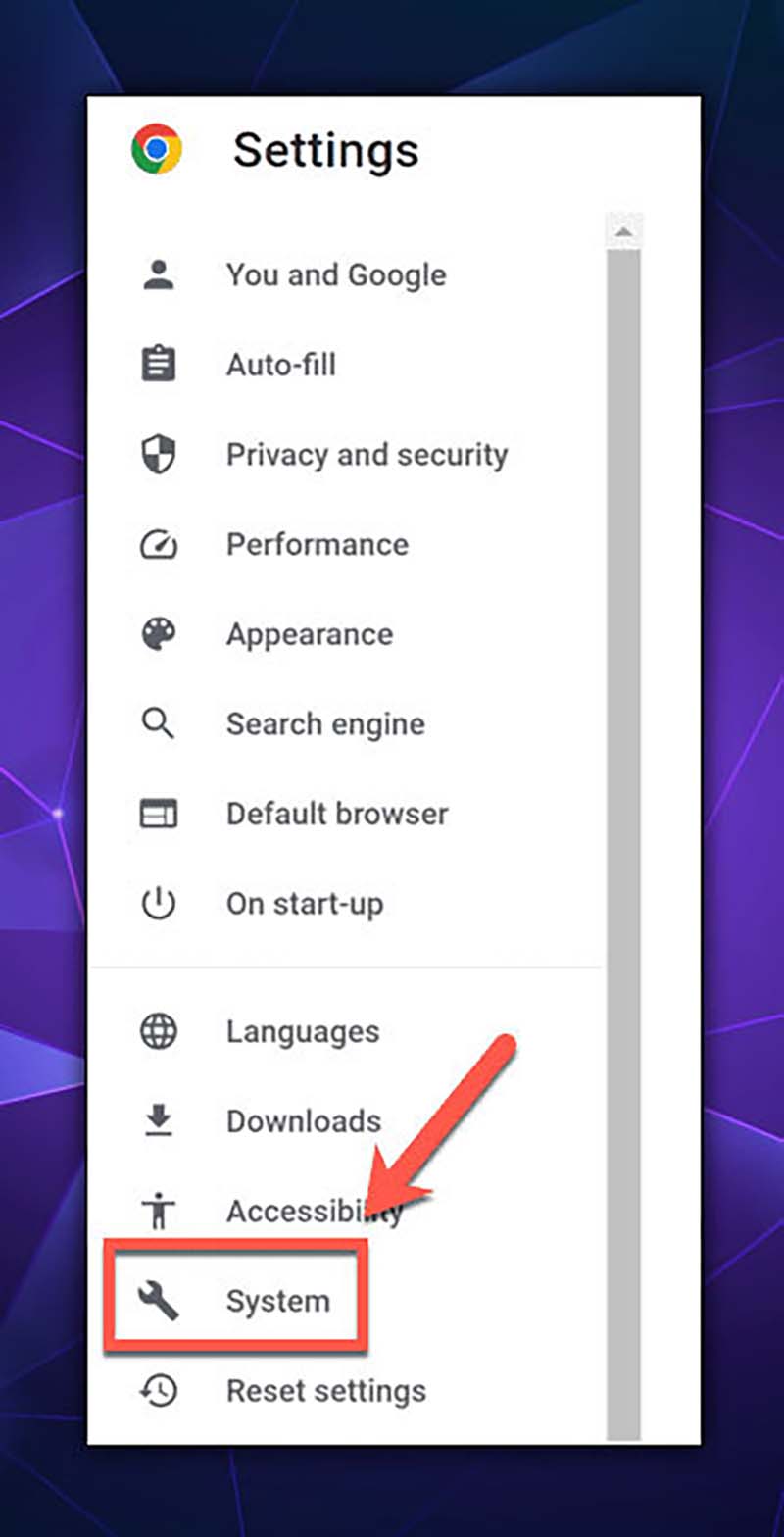
- In the left-hand menu, click on "System".
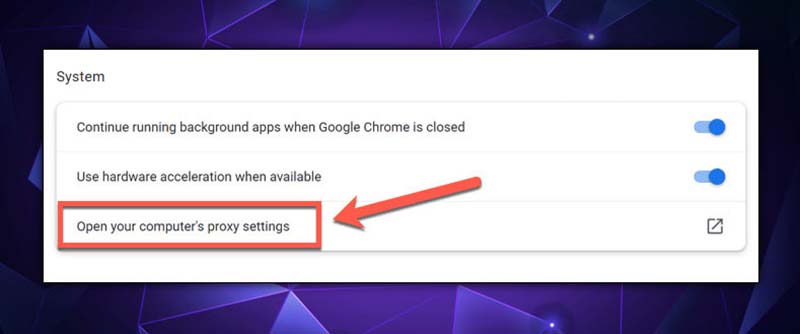
- Look for "Open your computer’s proxy settings" and click on it.
- This will open the Windows proxy settings. Under the "Manual proxy setup" section, click "Set up".
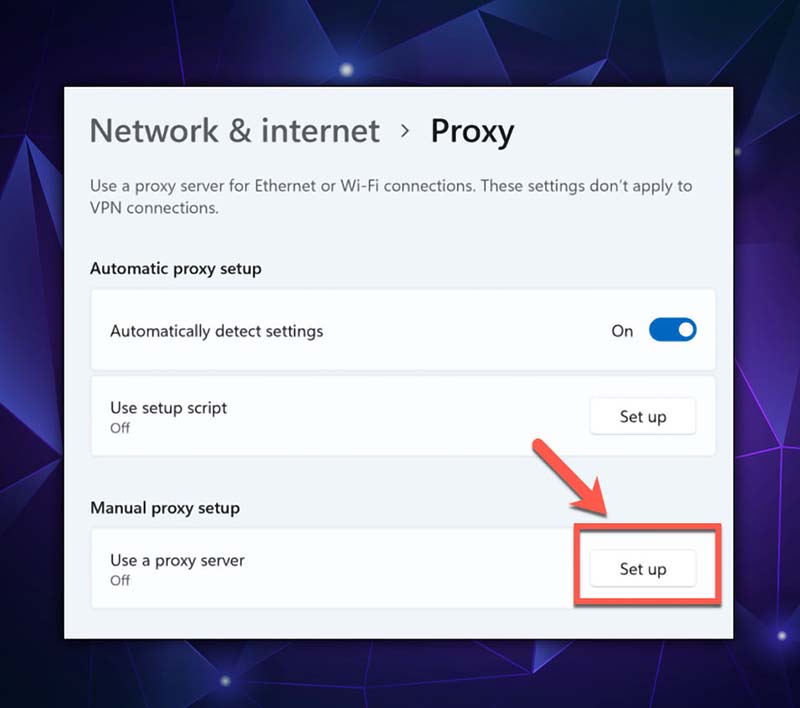
- Turn on the "Use a proxy server" switch.
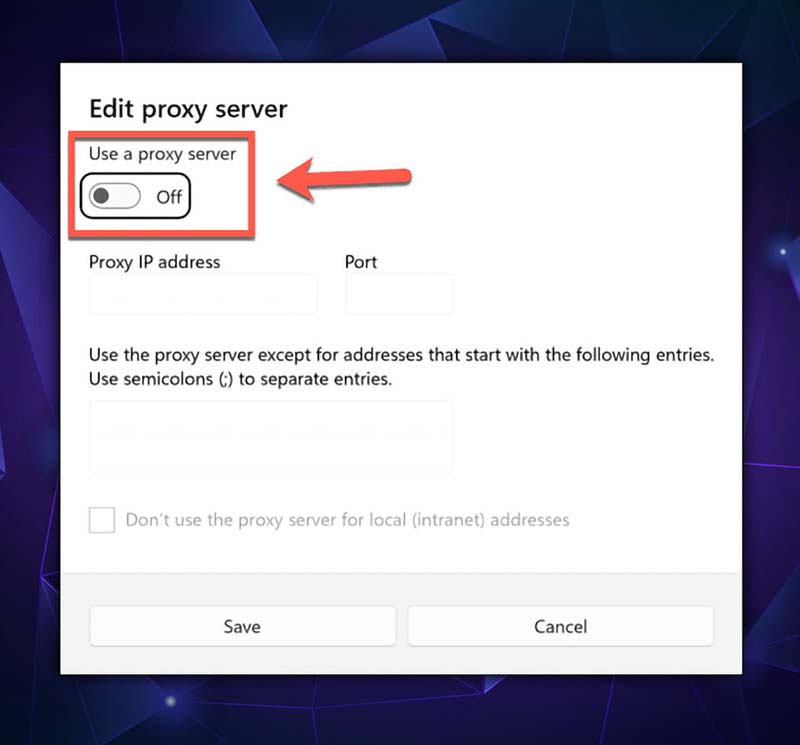
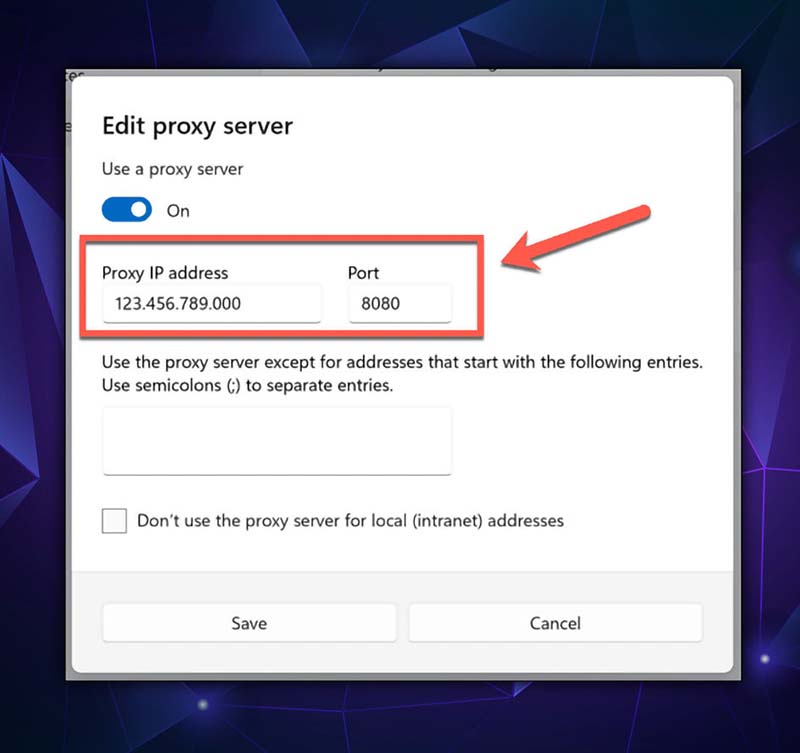
- Type in the IP address and port number of the proxy server you want to use.
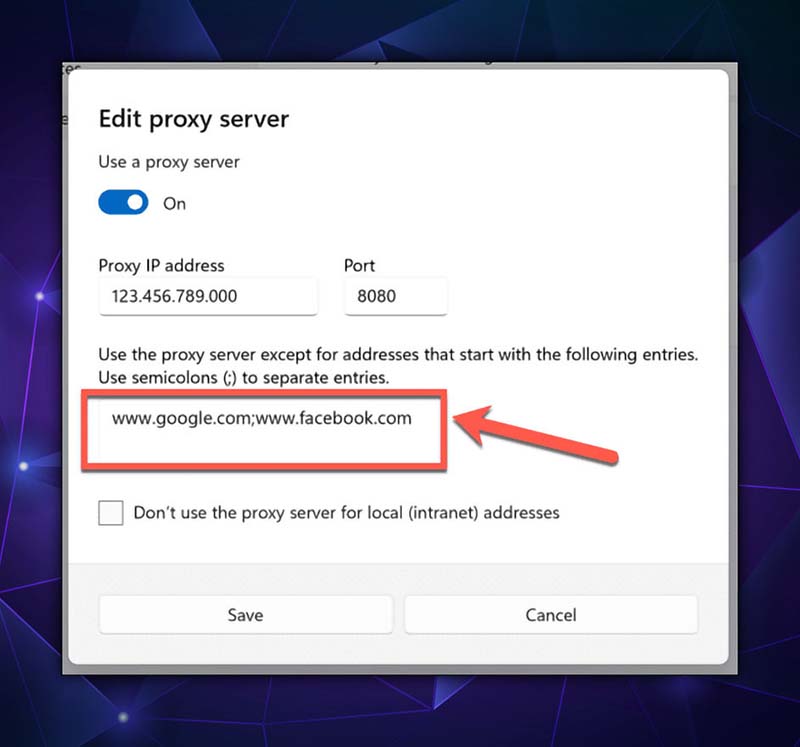
- If there are specific websites you don’t want to go through the proxy server, type their addresses in the box provided, separating each address with a semicolon.
- Check the box next to "Don’t use the proxy server for local (intranet) addresses".
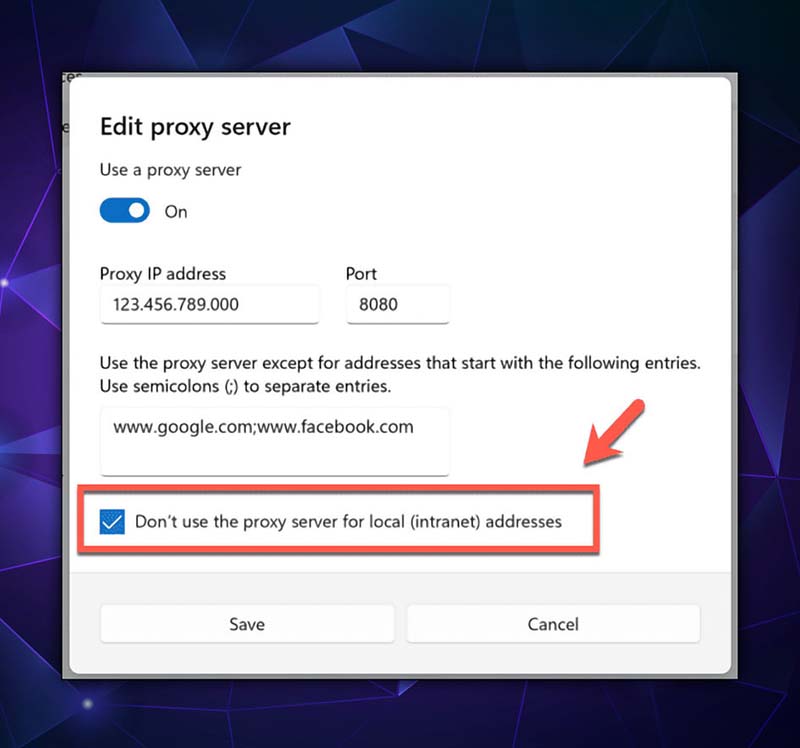
- Click "Save" to apply the changes, go back to Chrome and start browsing. Your internet traffic will now go through the proxy server you've set up, except for the websites you listed as exceptions.
How to Use Proxy Server in Chrome on Mac?
For Mac users, configuring a proxy server for use with Google Chrome is also an option.
- Open the Google Chrome browser. (How to do it as on Windows)
- Click on the three dots in the top right corner to open the menu, and then select "Settings."
- In the left-hand menu, click "System."
- Click on "Open your computer’s proxy settings." This will open the Mac network settings.
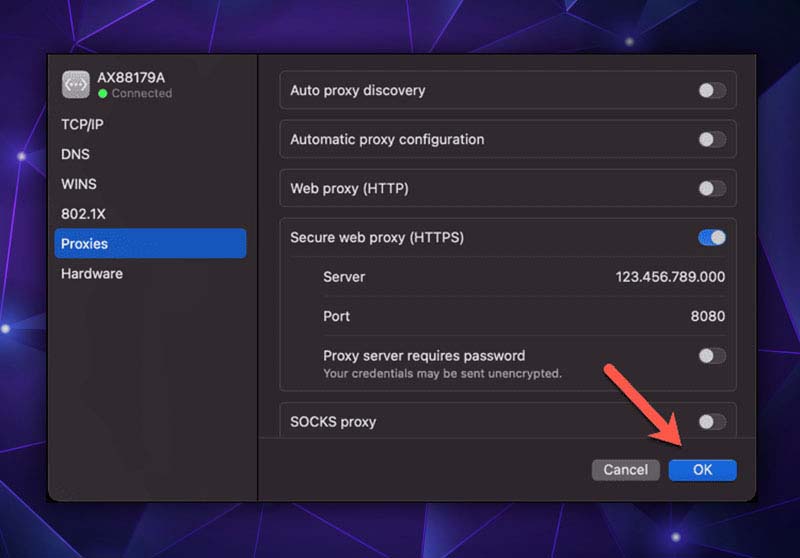
- Under the network settings, look for the proxy settings section. Here, you'll need to toggle on the type of proxy you are using (such as HTTP or HTTPS). If you're unsure, consult your proxy provider for the correct type of proxy to select.
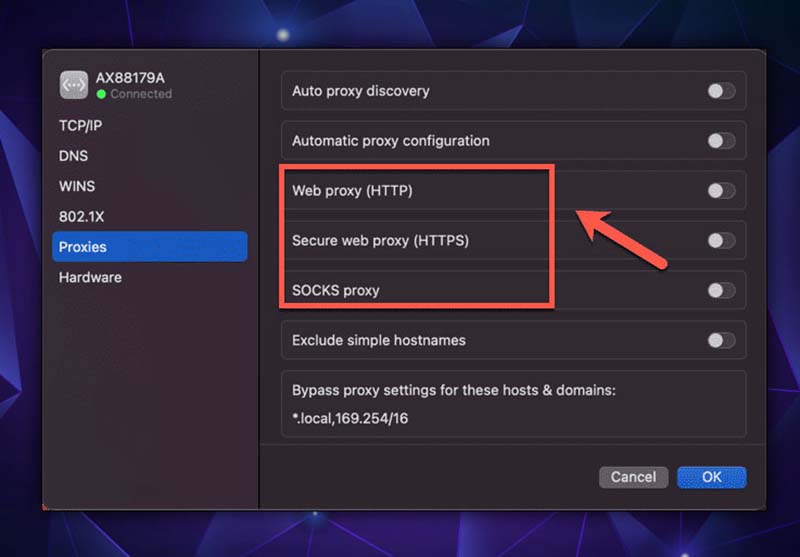
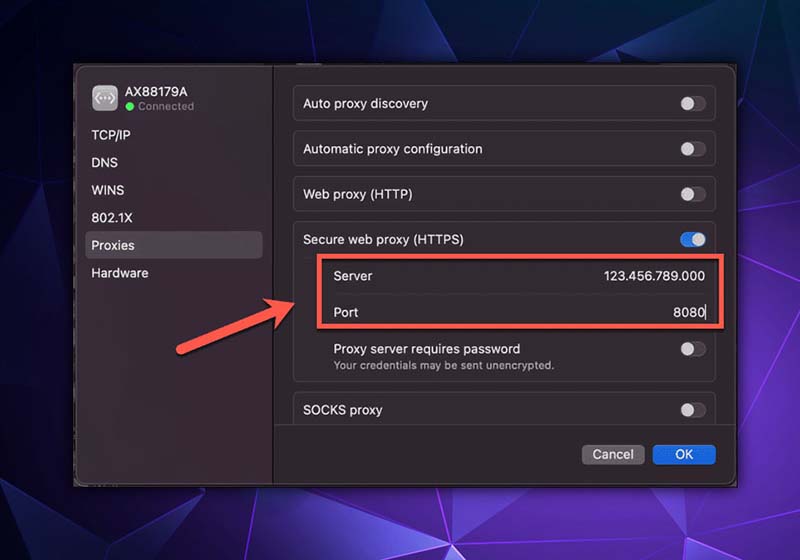
- Enter the IP address and port number for your proxy server in the corresponding fields.
- If there are specific websites you don't want to use the proxy for, you can list them in the "Bypass Proxy Settings for These Hosts and Domains" box. Separate each address with a comma.
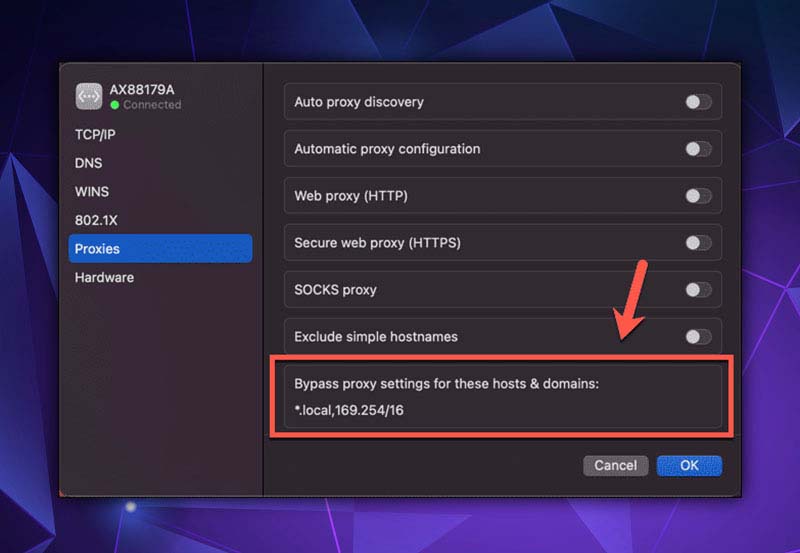
- Once you've entered all the necessary information, click "OK" to apply your new proxy settings.
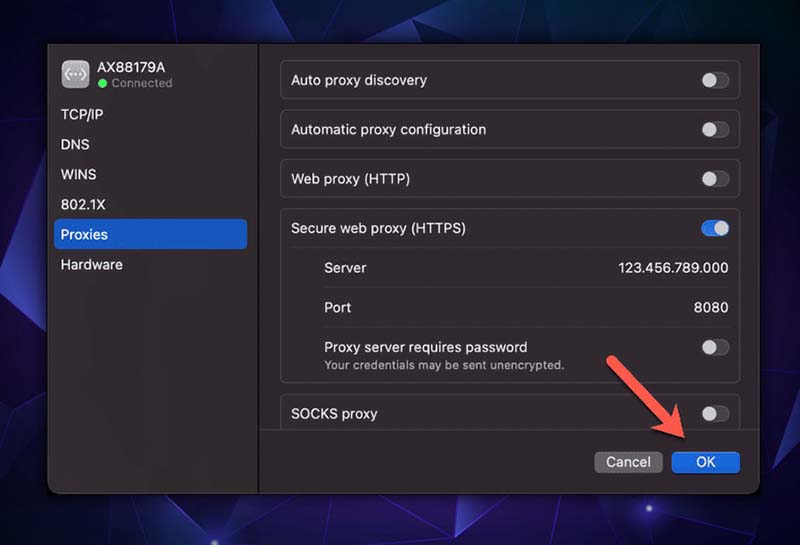
- Your proxy server should now be set up and active when you use Chrome on your Mac computer.
How to Disable a Proxy Server in Chrome?
Disabling a proxy server Google Chrome requires changing the proxy settings on your computer, as Chrome relies on the system-wide proxy settings.
On Windows
- Open Chrome and click on the three vertical dots in the top right corner to access the menu.
- Select "Settings" to open a new tab with settings options.
- In the left-hand side menu, click on "Advanced" then "System."
- Click on "Open your computer’s proxy settings" to open the Windows Network & Internet dialog box.
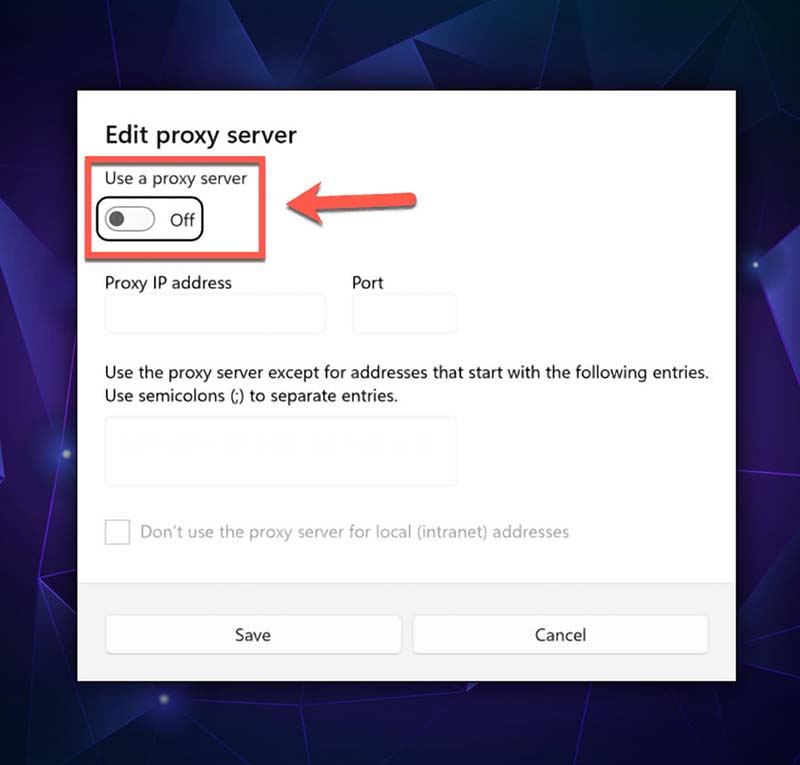
- In the "Manual proxy setup" section, turn off the "Use a proxy server" toggle.
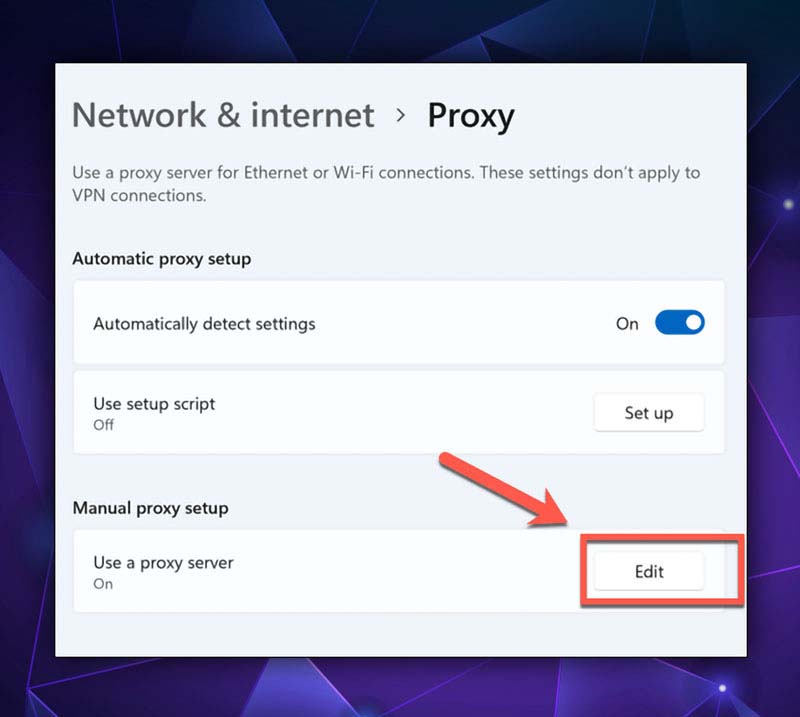
- Click "Save" to apply the changes.
On Mac
- Open Chrome and click on "Preferences" from the top menu.
- In the left-hand side menu, click on "Advanced" then "System."
- Click on "Open your computer’s proxy settings" to open the Mac network settings.
- In the network settings, locate the box where you've configured the proxy and uncheck the appropriate proxy type that you want to disable, such as the HTTP proxy.
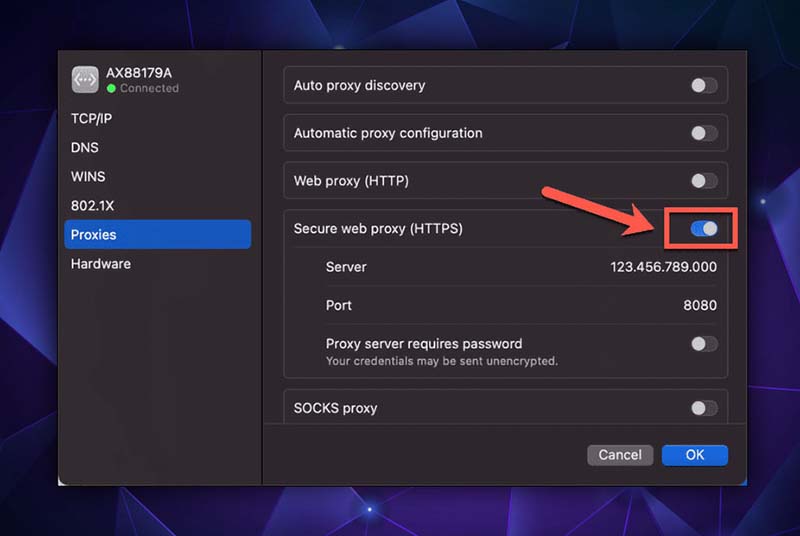
- Click "Save" to apply the changes.
FAQ
Can I use multiple proxy servers with Chrome?
Yes, you can use multiple proxy servers with Chrome. However, it is crucial to manage and configure them properly to prevent any conflicts.
Is there a Chrome extension for setting up a proxy server?
Yes, there are several Chrome extensions available for setting up a proxy server. You can search the Chrome Web Store and enter "proxy" in the search bar to find a suitable extension.
Why is my Chrome not connecting to the internet when using a proxy server?
This could be due to incorrect proxy settings, or the proxy server may be down. Check your proxy settings and make sure they are correct, and try connecting to the proxy server directly to see if it is online.
Can I use a VPN and a proxy server together in Chrome?
Yes, you can use a VPN and a proxy server together in Chrome. However, keep in mind that the configuration can be complex and may not be necessary for most users.
Can I use a proxy server with incognito mode in Chrome?
Yes, you can use a proxy server with incognito mode in Chrome. Proxy settings are configured at the system level, meaning they will apply to all browsing modes in Chrome, including incognito mode.
Conclusion
Utilizing a proxy server Chrome configuration offers enhanced online security, privacy, and improved access to restricted content. The setup is straightforward, delivering significant benefits for your digital interactions. For more specialized insights and thorough guides, peruse our additional content here at 9Proxy. Your journey toward a more secure and effective online browsing experience begins with our specialized guidance.
Nhận bản tin về mọi thứ liên quan đến proxy